
This guide explains how to reset the password of a Windows VPS from the PowerVPS control panel.
First, try changing the password directly from the VPS control panel. If this does not work, you can use Recovery Mode and the chntpw utility.
Important: Use this procedure only for a VPS that you own or administer.
Warning: Recovery Mode modifies the Windows account database directly. Incorrect actions may prevent Windows from starting correctly.
Method 1. Change the Password from the VPS Control Panel
Open the PowerVPS VPS control panel:
https://vm.powervps.xyz/
Go to:
Virtual Machines → Select the VPS → Menu → Change Password
Enter a new password and apply the change.
If the new password does not work after the operation is complete, use Recovery Mode as described below.
Method 2. Reset the Windows Password in Recovery Mode
Step 1. Enable Recovery Mode
In the VPS control panel, go to:
Virtual Machines → Select the VPS → Menu → Recovery Mode
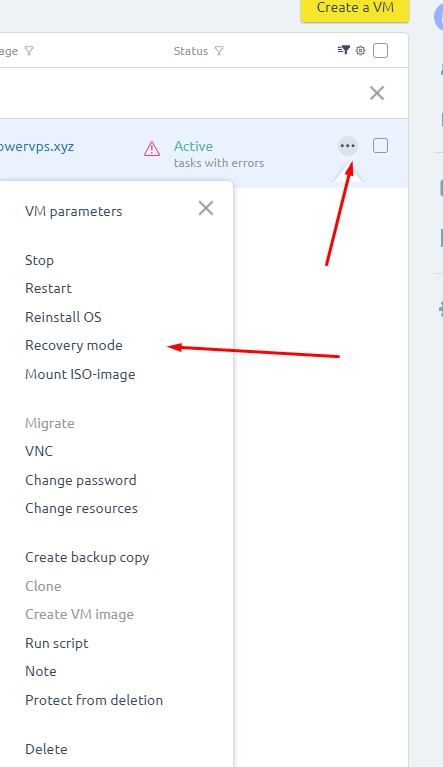
Select:
Start Recovery Mode and Reboot
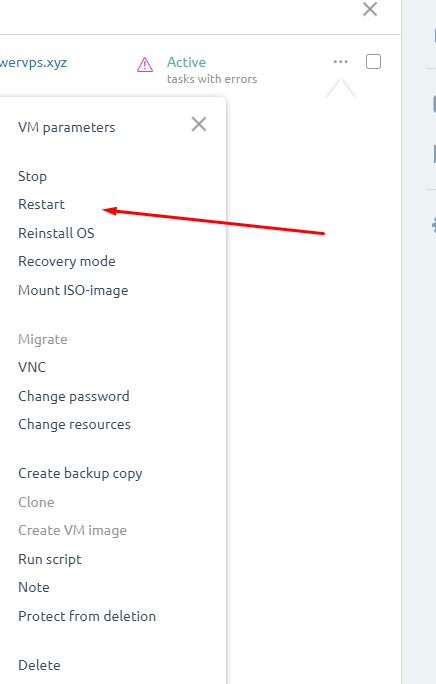
Wait for the VPS to reboot into the recovery environment.
Step 2. Open the VNC Console
Go to:
Virtual Machines → Select the VPS → Menu → VNC
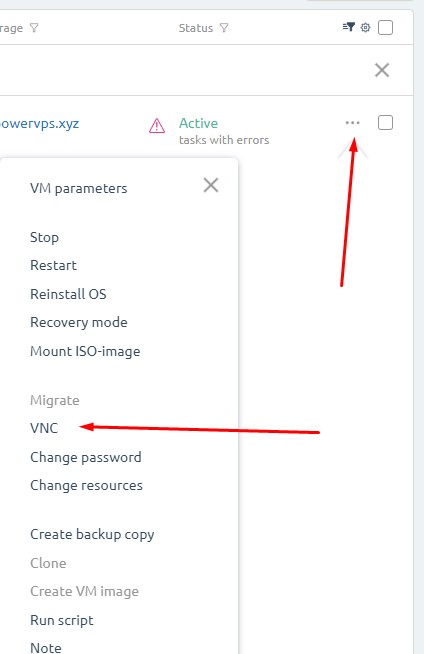
When SystemRescue starts, select the default boot option.
Step 3. Find the Windows Partition
In the SystemRescue terminal, display the available disks and partitions:
fdisk -lYou can also use:
lsblk -fLook for the Windows partition. It will normally use the NTFS filesystem.
Example:

In this example, the Windows partition is:
/dev/vda2
Important: The partition on your VPS may have a different name. Do not assume that it is always /dev/vda2.
Step 4. Mount the Windows Partition
Create or use the mount point and mount the Windows partition:
mount /dev/vda2 /mntReplace:
/dev/vda2
with the actual Windows partition found in the previous step.
Step 5. Open the Windows Configuration Directory
Run:
cd /mnt/Windows/System32/config/The Windows local account database is stored in the:
SAM
file.
Step 6. Display the Windows Local Accounts
Run:
chntpw -l SAMThe command will display the local Windows users.
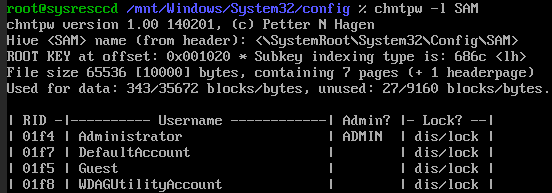
The output includes information such as:
- RID — account identifier.
- Username — Windows local account name.
- Admin — whether the account has administrator privileges.
- Lock status — whether the account is disabled or locked.
Find the administrator account that you want to reset.
For the built-in Windows Administrator account, the RID is commonly:
01f4
Step 7. Open the Account in chntpw
For an account with RID 01f4, run:
chntpw -u 0x01f4 SAMImportant: Use the RID shown by chntpw -l SAM for the account you actually want to reset.
Step 8. Unlock the Account if Necessary
If the account is disabled or locked, the chntpw menu may display an option similar to:
2 - Unlock and enable user account
Enter:
2
if the account needs to be enabled or unlocked.
Step 9. Clear the Password
In the chntpw menu, select:
1 - Clear (blank) user password
Then enter:
q
to exit.
When asked whether to save the changes, enter:
y
Step 10. Verify the Result
Run:
chntpw -l SAMagain.
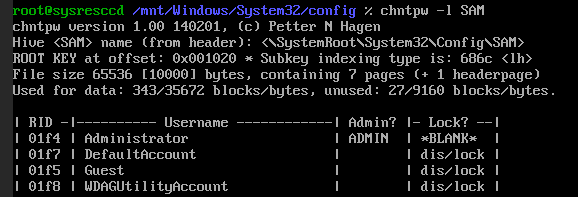
If the password was successfully cleared, the account may be shown with:
BLANK
status.
Step 11. Disable Recovery Mode
Return to the PowerVPS VPS control panel.
Go to:
Virtual Machines → Select the VPS → Menu → Recovery Mode
Select:
Disable Recovery Mode and Reboot
Wait for Windows to start normally.
Step 12. Set a New Windows Password
Connect to the server through VNC.
Open:
Start → Computer Management → Local Users and Groups → Users
Find the administrator account whose password was reset.
This may be:
Administrator
or another local administrator account configured on the VPS.
Right-click the account and select:
Set Password…
Enter a new strong password.
Password Security
Windows servers connected to the Internet regularly receive automated RDP login attempts.
Use a strong and unique password.
We recommend:
- At least 14 characters.
- Uppercase and lowercase letters.
- Numbers.
- Special characters.
- A password that is not used on any other service.
You can use the PowerVPS password guide:
Important Limitations
This recovery method works with local Windows accounts stored in the local SAM database.
It is not intended to reset:
- Microsoft online accounts
- Microsoft Entra ID accounts
- Active Directory domain passwords
SystemRescue documents chntpw specifically as a tool for modifying local Windows accounts stored in the SAM database.
If Windows Does Not Boot After Recovery
Check that:
- Recovery Mode was disabled.
- The correct Windows partition was mounted.
- The SAM file was modified in the correct Windows installation.
If necessary, return to Recovery Mode and verify the disk configuration again.
Conclusion
To reset a Windows VPS password:
- First try Change Password in the VPS control panel.
- If that fails, start Recovery Mode.
- Mount the Windows NTFS partition.
- Use
chntpwto identify and clear the local administrator password. - Disable Recovery Mode and reboot Windows.
- Set a new strong password from Windows.
Use Recovery Mode only when the normal password reset function does not work.