
If OpenSSH is not available on your Windows computer, you can use a third-party SSH client to connect to your server.
One of the most popular SSH clients for Windows is:
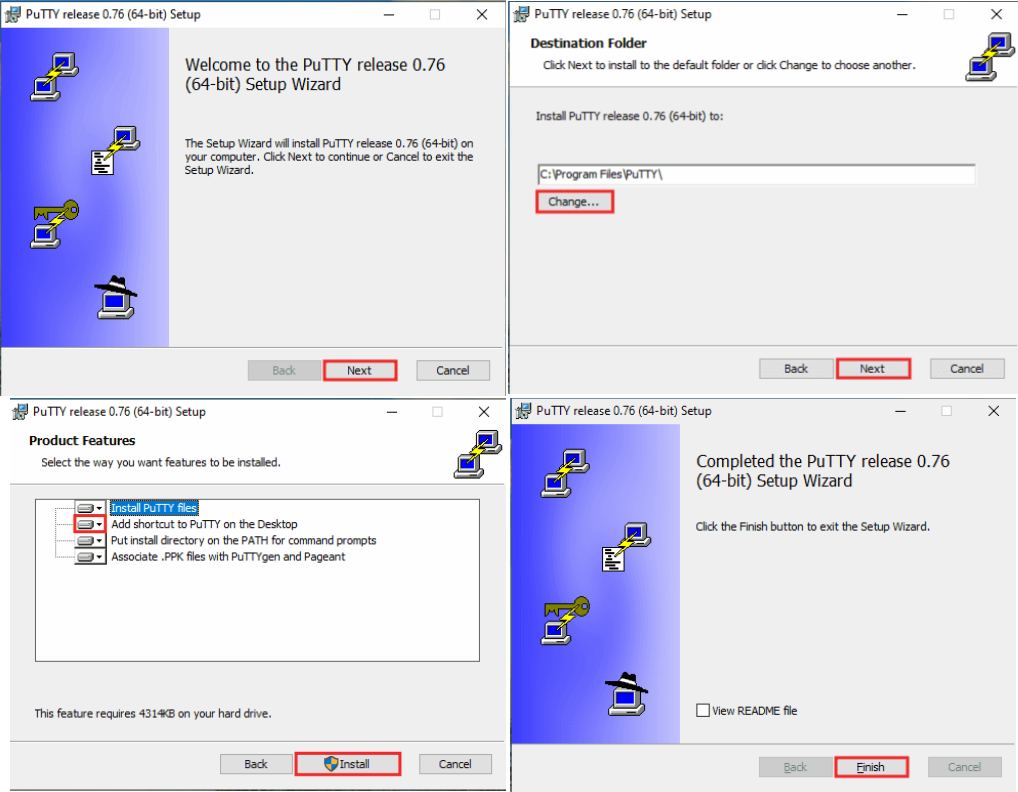
Step 1. Download and Install PuTTY
Download PuTTY from the official website:
Run the installer and follow the installation wizard.
Step 2. Configure the SSH Connection
Open PuTTY.
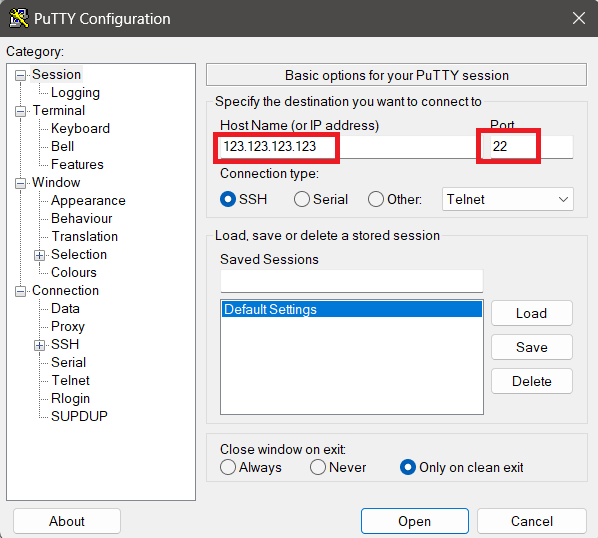
In the connection window, enter the following settings:
- Host Name (or IP address): enter the IP address of your server.
- Port: enter the SSH port. The default SSH port is
22. - Connection type: select SSH.
Then click:
Open
Step 3. Accept the Server Host Key
When connecting to a server for the first time, PuTTY will display a security warning containing the server’s SSH host key fingerprint.
If you are sure that you are connecting to the correct server, click:
Accept
Security recommendation: For better security, compare the displayed SSH host key fingerprint with the fingerprint provided by your hosting provider or server administrator before accepting it.
Step 4. Enter Your Login Details
PuTTY will open a terminal window.
At the prompt:
login as:
enter your SSH username.
For many Linux servers, the username is:
root
Then enter your password.
Note: When entering a password in the Linux terminal, no characters, dots, or asterisks are displayed. Type the password normally and press Enter.
If the credentials are correct, you will be connected to the server command line.
Example
For a server with:
- IP address:
192.0.2.10 - SSH port:
22 - Username:
root
enter:
Host Name: 192.0.2.10
Port: 22
Connection type: SSH
Then click Open and log in using the server credentials.
Troubleshooting
Connection Timed Out
Check:
- The server IP address is correct.
- The server is powered on.
- The SSH port is correct.
- Windows Firewall or another local firewall is not blocking the connection.
- The server firewall allows incoming SSH connections.
- Your hosting provider’s external firewall allows the SSH port.
Connection Refused
A Connection refused error usually means that the server is reachable but no service is accepting connections on the specified port.
Make sure the SSH service is running and that you entered the correct SSH port.
Access Denied
If the server rejects your login, check:
- The SSH username.
- The password.
- Whether password authentication is enabled on the server.
- Whether the server requires an SSH key instead of a password.
Conclusion
PuTTY allows you to connect to a Linux server over SSH from Windows.
Enter the server IP address, SSH port, and connection type, accept the server host key when connecting for the first time, and then log in using your SSH username and password.